nopAccelerate

Faster, scalable and reliable nopCommerce.

What’s New in nopCommerce 5.0 for B2B and Enterprise Ecommerce?

FacebooktwitterredditpinterestlinkedinmailFacebooktwitterredditpinterestlinkedinmail

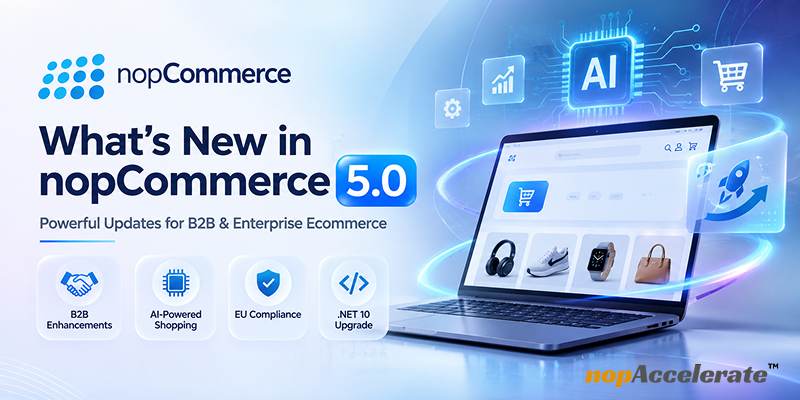
nopCommerce 5.0 introduces several updates for businesses that need greater control over pricing, purchasing, customer management, and store operations. Key additions include native price lists, vendor-specific checkout, PunchOut integration, customer-selected delivery dates, and AI-powered shopping capabilities.

The release also brings customer retention tools, EU compliance features, SMS-based login, and an upgrade to .NET 10.

For B2B and enterprise ecommerce businesses, these updates offer more flexibility in managing purchasing workflows, customer requirements, and store operations.

This guide explores the key nopCommerce 5.0 features, how they work, where to configure them, and their potential business value.

B2B Selling and Purchasing Improvements

1. Native Price Lists for Flexible B2B Pricing

What it is:

Create different product prices for specific customers or customer groups without duplicating products or managing complex discount rules.

How it works:

  • Create price lists using percentage increases or decreases, fixed amount adjustments, or manually entered product prices.
  • Assign price lists to individual customers or customer roles.
  • Set start and end dates for each price list.
  • When multiple lists apply, choose whether to use the lowest price or the list with the highest priority.
  • Import and export price lists through Excel.

How to use:

  1. Go to Catalog → Price lists → Add new.
  2. Enter the list name, calculation type, value, and applicable dates.
  3. Add products under the Products tab and assign customers or customer roles.
  4. Configure the pricing strategy under Configuration → Settings → Catalog settings → Price list strategy.

Business impact:

Manage wholesale, contract, and customer-specific pricing from one place. This makes it easier to maintain different pricing agreements without duplicating products or creating multiple discount rules.

2. Vendor Carts: Separate Checkout by Vendor

What it is:

Allow marketplace customers to check out products from one vendor at a time, rather than combining products from multiple vendors in a single order.

How it works:

  • A vendor selector appears when a cart contains products from multiple vendors.
  • Customers select one vendor to proceed with checkout.
  • Products from other vendors remain in the cart and are temporarily set aside.
  • The Vendor required setting can make vendor selection mandatory before checkout.

How to use:

  1. Go to Configuration → Settings → Shopping cart settings.
  2. Enable Vendor filtering.
  3. Enable Vendor required if customers must select a vendor before checkout.

Business impact:

Keep marketplace orders organized by vendor. This can simplify order processing, shipping, vendor payouts, returns, and invoicing for multi-vendor businesses.

3. Interactive 3D Product Models

What it is:

Add interactive 3D product models to product pages so customers can rotate and zoom in on products before purchasing.

How it works:

  • Upload one .glb model file per product, up to the default 20 MB limit.
  • Display the model through an interactive viewer on the product page.
  • Configure camera controls, zoom, auto-rotation, and lazy loading.
  • Allow marketplace vendors to upload 3D models when the relevant vendor setting is enabled.

How to use:

  1. Go to Catalog → Products → Edit product → Multimedia → 3D model and upload the .glb file.
  2. Configure viewer options under Configuration → Settings → Media settings → Product 3D models.
  3. For marketplaces, manage vendor uploads under Configuration → Settings → Vendor settings → Allow vendors to upload 3D models.

Business impact:

Give customers a closer look at products before purchasing. This is particularly useful for furniture, electronics, jewellery, shoes, and other products where product appearance and details influence buying decisions.

4. Let Customers Choose Their Desired Delivery Date

What it is:

Allow customers to select their preferred delivery date during checkout based on the available delivery options.

How it works:

  • The earliest available date is calculated using the transit days configured for the shipping method.
  • Customers can select from available dates, with seven days shown by default.
  • The selected date is saved with the order.
  • Both customers and administrators can view the selected date.

How to use:

  1. Go to Configuration → Settings → Shipping settings.
  2. Enable Allow customers to choose delivery date and configure the Range of days to choose from.
  3. Configure Transit days for the relevant shipping method.

Business impact:

Give customers more control over delivery planning. This is useful for scheduled purchases, gifts, groceries, furniture, and other deliveries where timing matters.

5. PunchOut Integration for B2B Purchasing

What it is:

The PunchOut cXML plugin connects your nopCommerce store with corporate procurement systems such as SAP Ariba and Coupa, allowing business buyers to send shopping carts back for internal approval.

How it works:

  1. A buyer opens your store through their company’s purchasing system.
  2. They browse products and build a shopping cart on your store.
  3. The cart is transferred back to the procurement system for internal approval.
  4. After approval, the purchasing system sends the purchase order to your store.

How to use:

  1. Go to Configuration → Local plugins → PunchOut cXML Integration → Configure.
  2. Enter the shared credentials agreed upon with the buyer’s purchasing system.

Business impact:

Support corporate and government buyers who purchase through approved procurement systems. PunchOut helps B2B businesses accommodate centralized purchasing and internal approval workflows.

Marketing, Customer Retention, and Sales Improvements

6. Built-in Customer Reminders

What it is:

Send automated email reminders for abandoned carts, pending orders, and incomplete customer registrations without installing a separate reminder plugin.

How it works:

  • Abandoned carts: Send three emails after 2 hours, 1 day, and 5 days.
  • Pending orders: Send two emails after 3 days and 10 days when payment is still pending.
  • Incomplete registrations: Send an activation reminder after 1 day.
  • Enable or disable individual reminders and adjust their sending delays.
  • Scheduled tasks process reminder emails in the background.

How to use:

  1. Go to Promotions → Reminders and enable the reminders you want. All reminders are disabled by default.
  2. Edit the email content under Content management → Message templates by searching for “Reminder.”
  3. Check the related scheduled tasks under System → Schedule tasks.

Business impact:

Automate follow-ups for customers who leave carts, orders, or registrations incomplete. This creates opportunities to recover abandoned carts, encourage pending payments, and improve customer registration completion.

EU Compliance and Product Safety

7. EU Withdrawal Button

What it is:

Add a dedicated withdrawal-from-contract option to the return request process to support the EU withdrawal process under Directive 2023/2673.

How it works:

  • For registered customers, the return option can display Withdraw contract instead of Return items when EU withdrawal wording is enabled.
  • Guest customers can retrieve their orders through a dedicated page.
  • After entering their order number and billing email, guest customers receive a secure withdrawal-form link by email.
  • The withdrawal link is valid for seven days by default.
  • Administrators can configure return reasons, actions, eligible orders, downloadable products, and CAPTCHA protection.

How to use:

  1. Go to Configuration → Settings → Order settings → Return request (withdrawal button) settings.
  2. Configure EU withdrawal wording, guest requests, link validity, return reasons, and other available options.
  3. Configure CAPTCHA under Configuration → Settings → General settings → CAPTCHA.
  4. Edit the ReturnRequest.WithdrawalLink email template under Content management → Message templates.

Business impact:

Provide EU customers with a dedicated withdrawal process and manage requests through the store administration. Businesses selling to EU customers can configure the functionality according to applicable legal requirements.

8. GPSR Product Safety Information

What it is:

Manage manufacturer and responsible-person contact details required for relevant products under the EU General Product Safety Regulation (GPSR).

How it works:

  • Add the manufacturer’s physical address and electronic contact details, such as an email address or website.
  • For non-EU manufacturers, add the responsible person’s name and physical and electronic contact details.
  • When GPSR is enabled, this information appears on product pages associated with that manufacturer.

How to use:

  1. Go to Catalog → Manufacturers → Edit and complete the GPSR information fields.
  2. Go to Configuration → Settings → Catalog settings → GPSR.
  3. Enable GPSR. It is disabled by default.

Business impact:

Display manufacturer and responsible-person contact details directly on product pages. This gives customers access to relevant product safety information while helping businesses manage their GPSR requirements.

AI-Powered Shopping and New Sales Channels

9. AI-Powered Product Recommendations

What it is:

Use AI-powered recommendation capabilities to suggest relevant products and support product discovery.

How it works:

nopCommerce 5.0 introduces support for AI-powered product recommendations. However, detailed configuration and implementation steps are not covered in the available feature documentation.

Store owners should refer to the relevant AI recommendation provider or plugin documentation for implementation details.

Business impact:

Relevant product suggestions can support cross-selling and upselling. They also give customers more opportunities to discover products beyond their initial search, particularly in stores with large catalogs.

10. ChatGPT Shopping Product Feed

What it is:

Generate a product feed from your nopCommerce catalog for use with ChatGPT Shopping.

How it works:

  • The plugin generates a feed containing product information.
  • The generated feed is packaged as a ZIP file.
  • Store owners can submit or host the feed according to the plugin instructions.

How to use:

  1. Go to Configuration → Local plugins → ChatGPT Shopping → Configure.
  2. Select Generate feed to create the product ZIP file.
  3. Submit or host the feed as described on the plugin page.

Business impact:

Prepare your product catalog for another product discovery channel. This creates another opportunity for customers to discover products through ChatGPT Shopping.

11. Jotform AI Agent Integration

What it is:

Add a Jotform AI agent chat button to your nopCommerce storefront so customers can ask questions and receive automated responses.

How it works:

  • Create an AI agent through Jotform.
  • Copy the agent’s embed code.
  • Add the code through the Jotform AI agent widget plugin configuration.
  • The chat button becomes available on the storefront.

How to use:

  1. Sign up for Jotform and create an AI agent.
  2. Copy the agent’s embed code.
  3. Go to Configuration → Local plugins → Jotform AI agent widget → Configure and paste the code.

Business impact:

Provide customers with automated answers to common questions at any time. This can help shoppers get assistance while browsing and reduce manual responses to routine queries.

Customer Accounts and Login

12. Phone Number Login with SMS Verification

What it is:

Allow customers to sign in using their phone number and a one-time password (OTP) sent by SMS instead of entering a password.

How it works:

  • Customers enter their phone number and receive a six-digit verification code.
  • The code expires after 30 seconds.
  • Up to three code-sending attempts are allowed before a 15-minute waiting period.
  • After three incorrect codes, the login attempt is blocked.
  • Phone numbers must use international format, including the country code.

How to use:

  1. Go to Configuration → Settings → Customer settings → Customer form fields.
  2. Enable Phone number enabled, Phone number required, and Phone number validation enabled.
  3. Turn on Login by phone and configure the OTP options in Customer settings.
  4. Configure an SMS provider, such as the Twilio plugin.

Business impact:

Offer customers a password-free login option with SMS verification. This provides another way to access customer accounts, particularly for shoppers using mobile devices.

Platform and Developer Improvements

13. Updated to .NET 10

What it is:

nopCommerce 5.0 moves the platform to .NET 10, updating its underlying technology framework.

How it works:

  • The platform now targets .NET 10.
  • Custom plugins must also target .NET 10 to work with the updated platform.
  • Developers need to review existing custom code, dependencies, and development environments during an upgrade.

What businesses should review:

  1. Prepare the .NET 10 development environment.
  2. Review existing custom plugins and update their target framework.
  3. Check third-party plugin and theme compatibility.
  4. Review custom integrations and dependencies.
  5. Test the updated store in a staging environment before deployment.

Business impact:

Ensure your custom development is compatible with the .NET 10 framework used by nopCommerce 5.0. Plan the framework transition alongside plugin compatibility checks and testing to reduce upgrade-related issues.

How nopAccelerate Can Help With Your nopCommerce 5.0 Upgrade

Upgrading an established B2B or enterprise ecommerce store involves more than updating the platform. Existing themes, plugins, integrations, and custom workflows may also require changes.

The nopAccelerate team provides nopCommerce development and upgrade services to help businesses assess their current setup and plan the required work.

Our developers can help with:

  • Custom nopCommerce 5.0 upgrades
  • Theme and plugin compatibility
  • Custom plugin development and updates
  • ERP and third-party integration updates
  • B2B functionality and workflow customization
  • Bug fixes, testing, and ongoing technical support

If you are planning an upgrade or need help with ongoing development, talk to our team about your requirements. We can allocate an experienced nopCommerce developer on an hourly basis, based on the work you need. Our developers also use AI tools to make development more efficient, helping save time and costs while maintaining quality.

Conclusion

nopCommerce 5.0 brings several improvements that can help B2B and enterprise businesses manage purchasing requirements, customer experiences, and store operations more effectively.

From flexible pricing and procurement integrations to customer retention tools, compliance updates, and improved shopping experiences, the release offers useful capabilities for different ecommerce business needs.

Before upgrading, assess your existing store configuration, custom development, themes, plugins, and third-party integrations to identify potential compatibility issues and plan the required changes.

Explore our range of ready-to-use nopCommerce themes and plugins in our store, or contact us for nopCommerce upgrade and development services tailored to your requirements.


FacebooktwitterredditpinterestlinkedinmailFacebooktwitterredditpinterestlinkedinmail

Leave A Comment

Fill in form

and we will contact you

How can we help ?

Schedule a quick call, 15-minute meeting with one of our experts:

Thank You !

Our consultant will contact you in 24 hours.

Delivering generous mobile apps for Entrepreneurs, Startups & Businesses


Have a look at nopAccelerate Demo Store with 80,000+ products with nopAccelerate Solr and CDN Plugin.

download-trial Start Trial